

The FLEXlm License Management System protects TASKING products released before 2014. All TASKING toolsets are subject to the terms and conditions of the End-User License Agreement.
The specific license type for your toolset will determine its allowed usage and transferability. UNIX products will only have a floating license type.
Node-Locked License
Node licenses locks your software to the computer it was installed on.
Floating License
Floating licenses are located on a license server and can be used by multiple users on a network.
A license key is required to install and validate all TASKING products.
If you have not received a key follow the steps below to obtain one.
Windows
- Run the License Administrator during installation and follow the steps to request a license key from TASKING via email.
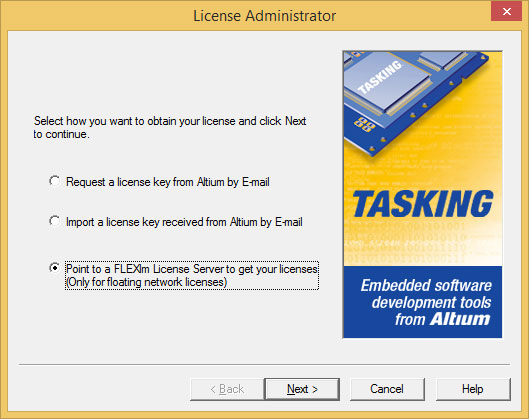
- Email the license request file to your local TASKING sales representative.
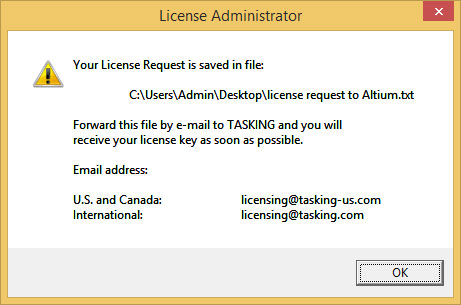
- Your license key will then be sent to you via email.
UNIX
Installing Node-Locked Licenses
- Install your TASKING software product.
-
Create a license file by importing a license key or creating one manually.
- Importing License Key: During your software installation run the License Administrator (licadmin.exe) file. Follow the steps to Import a license key received from TASKING by Email.
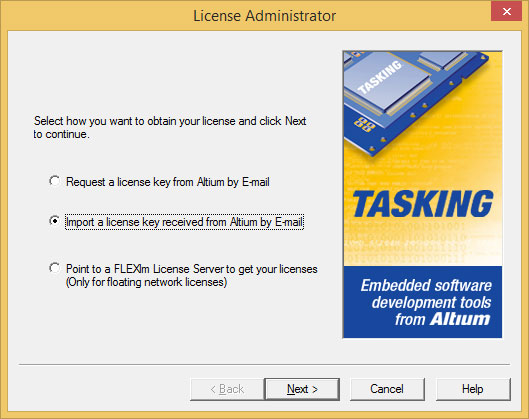
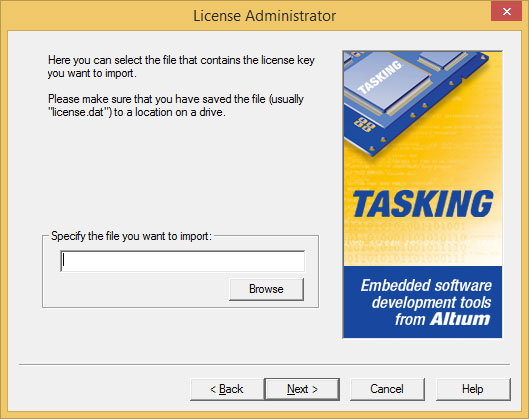
-
Creating license key manually: Create a file called license.dat in the c:\flexlm directory using an ASCII editor and insert the license key information in the file
- Importing License Key: During your software installation run the License Administrator (licadmin.exe) file. Follow the steps to Import a license key received from TASKING by Email.
- Your TASKING software and license file are now properly installed.
Installing Floating Licenses
- Install your TASKING software product on each computer.
- Create a local license file or point to a license file on a server on each computer.
- (Skip this step if you’ve already installed FLEXlm v8.4 or higher) Install the Flexible License Manager (FLEXlm) on the license server where you want to use the license manager.
- Confirm that the directory of your FLEXlm product contains a copy of the TASKING executable (Tasking.exe or Tasking).
- On the license server add the license key to your licensing file.
- Run the license manager reread file (lmreread) to reread the modified license file.
Add a License Key to a Local License File
Windows: Follow the same steps for importing a license key or creating a license file manually.
Unix: Insert the license key manually in the license file. Default location of license.dat file is in directory /user/local/flexlm/licenses.
Point to a License File on the Server
Windows: Run the License Administrator and follow the steps to Point to a FLEXlm license Server to get your license.
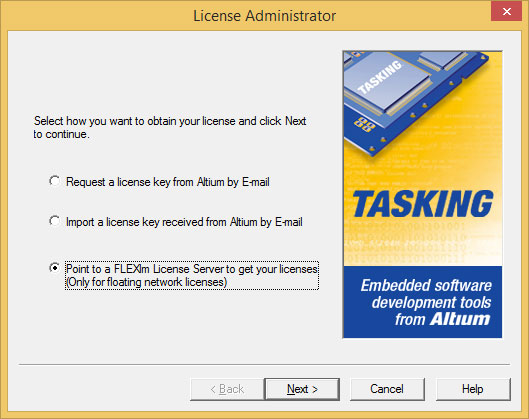
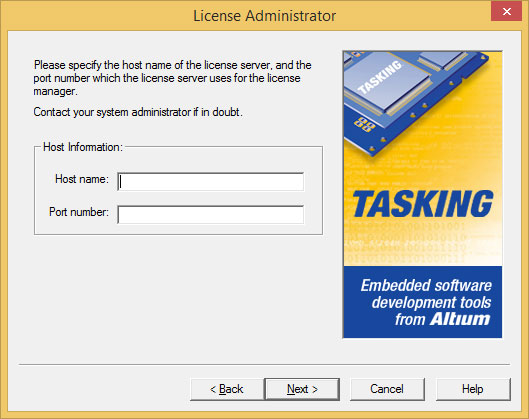
Unix: Set the environment variable LM_LICENSE_FILE to “port@host” where port and host come from the SERVER line in the license file.
The default location for the license file on Window/UNIX is:
Windows: c:\flexlm\license.dat
Unix: /usr/local/flexlm/licenses/license.dat
If you want to use another name or directory for the license file each user must define the environment variable LM_LICENSE_FILE.
Specifying Multiple License Files
If you have more than one product using the FLEXlm license manager you can specify multiple license files to the LM_LICENSE_FILE environment variable by separating each pathname (lfpath) with a semicolon ';' (on Windows), or colon ':' (on UNIX) like the examples below:
Windows: set LM_LICENSE_FILE=c:\flexlm\license.dat;c:\license.txt
Unix: setenv LM_LICENSE_FILE /usr/local/flexlm/licenses/license.dat:/myprod/license.txt
If the license file is not available on these hosts, you must set LM_LICENSE_FILE to port@host where the host is the hostname of the system which runs the FLEXlm license manager and port is the TCP/IP port number on which the license manager listens.
To obtain the port number, look in the license file at the host for a line starting with "SERVER". The fourth field on this line specifies the TCP/IP port number on which the license server listens. For example:
setenv LM_LICENSE_FILE 7594@elliot
Host ID
The Host ID depends on the platform of the machine. Please use one of the methods listed below to determine the host ID.
| Platform | Retrieval Tool | Example |
|---|---|---|
| HP-UX |
landscan (use station address without leading ‘0x’) |
0000F0050185 |
| Linux |
/sbin/ifconfig eth0 (Use HWaddr without the colons) |
00400516E5 |
| SunOS/Solaris |
hostid |
170a3472 |
| Windows |
licadmin (License Administrator) |
0060084dfbe9 |
Note: When using a laptop connected to a network disconnect the network first before starting the License Administrator. Otherwise your license will not work when disconnected from the network.
Host Name
To retrieve the Host Name of a machine, use one of the following methods.
| Platform | Method |
|---|---|
| UNIX |
hostname |
| Windows NT |
licadmin (License Administrator) or: - Open the Control Panel then select Network. - On the Identification tab look for Computer Name. |
| Windows 2000/XP |
licadmin (License Administrator) or: - Open the Control Panel then select System. - On the Network Identification tab (Windows 2000) or Computer Name tab (Windows XP) look for Full Computer Name |
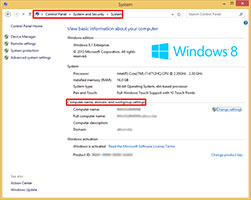
| Windows 8 |
Open the Control Panel, select System and Security and then choose System. |
Note: The hostname is only necessary for floating licenses.